Guide · Account and security
Account and security: codes, passkeys and devices
Sign in without a password to remember, add a passkey, turn on two-step verification, keep your recovery codes and sign out a device.
Checked against the real screen on November 5, 2026
Sign in
Sauti Africa does not ask for a password to remember: each time you sign in, an 8-digit code arrives by email, or by SMS if you added a number. So there is no password to reset.
If your administrator gave you a temporary password, choose “Did you receive a password?”. On first sign-in you choose your own: at least 8 characters, with an uppercase letter, a lowercase letter, a digit and a symbol.
Open your account security
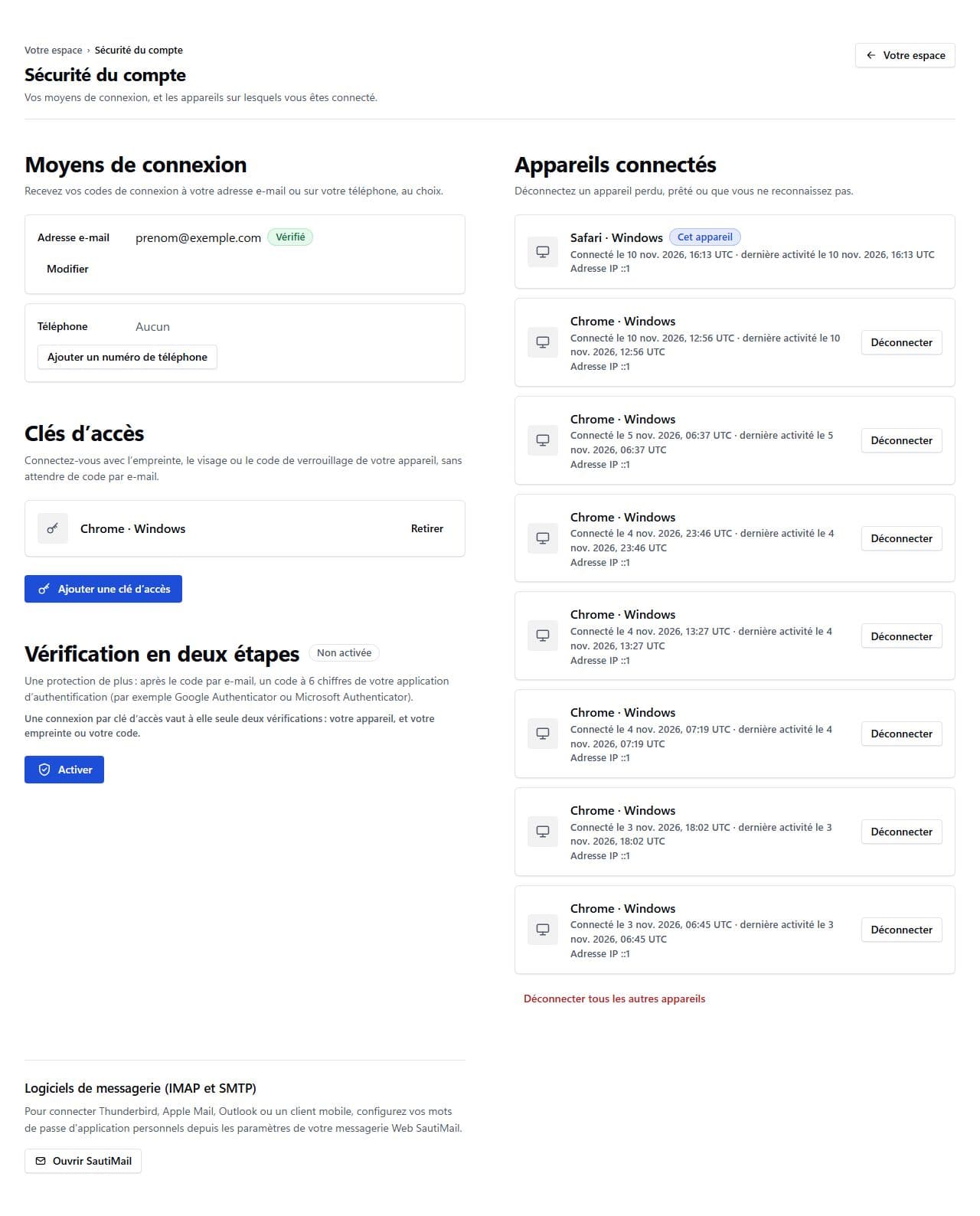
In the console, “My account security” opens the “Account security” page. To add or remove a passkey, first confirm your identity with “Confirm my identity”: a code by email is enough.
Add a passkey
A passkey signs you in with your device’s fingerprint, face or lock code, without waiting for an email code. On its own it counts as two checks: your device, and your fingerprint or code.
- Choose “Confirm my identity”, then enter the code you received.
- Choose “Add a passkey”, then follow your device’s instructions.
- Next time you sign in, choose “Sign in with a passkey”.
Two-step verification and recovery codes
With an authenticator app (for example Google Authenticator or Microsoft Authenticator), a 6-digit code is added to the email code. Choose “Turn on”, scan the QR code, then enter the code the app shows.
Your recovery codes are then shown only once: write them down, or choose “Download (.txt)”. If you lose your phone, each one replaces the app code once. “New recovery codes” creates others; the old ones then stop working.
Sign out a device
“Signed-in devices” lists your sign-ins, with their date, last activity and IP address. “Sign out” closes a lost, lent or unknown device; “Sign out all other devices” closes everything except the one you are on.
Add a number or an address
In the sign-in methods, choose “Add a phone number” or “Add an email address”, then enter the 8-digit code you receive to confirm it. You will then receive your sign-in codes either way.